
macslay+ docs
How the pre-release build works, how to run it, and what it doesn’t do yet. macslay+ is a native macOS app written in SwiftUI and AppKit.
What it is
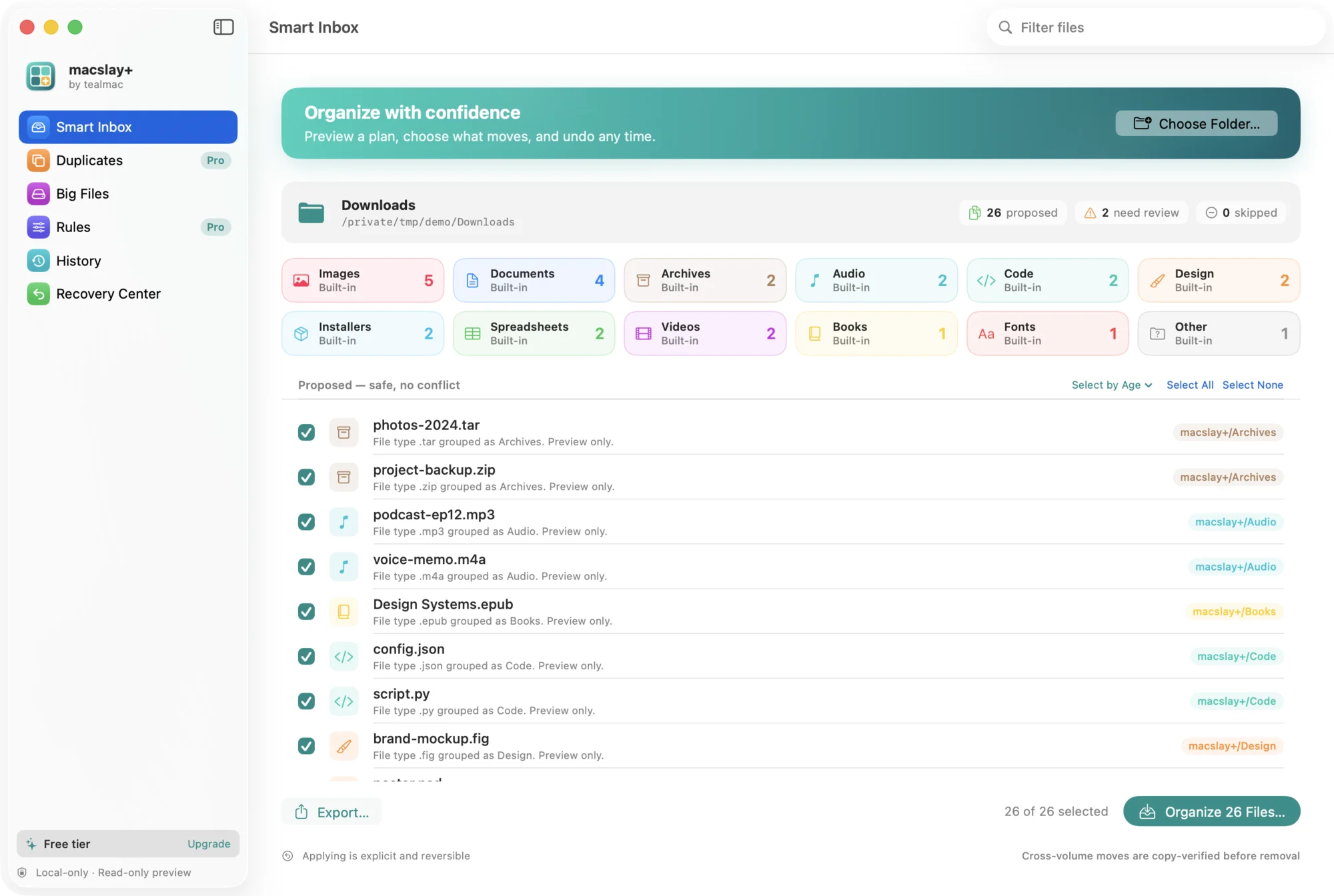
macslay+ helps you organize messy folders (Downloads, Desktop, archives) on macOS. It produces a deterministic, explainable plan that groups files by type, shows you conflicts, and changes nothing until you explicitly apply. Every apply is verified and journaled so it can be fully undone.
Availability
macslay+ is in development and nothing is on sale yet. The first downloads will be a disk image for macOS 14 and later that isn’t notarized by Apple yet, so macOS asks you to allow it once. The install guide explains how, and how to check the download’s checksum. The source code isn’t public.
Preview, apply, undo
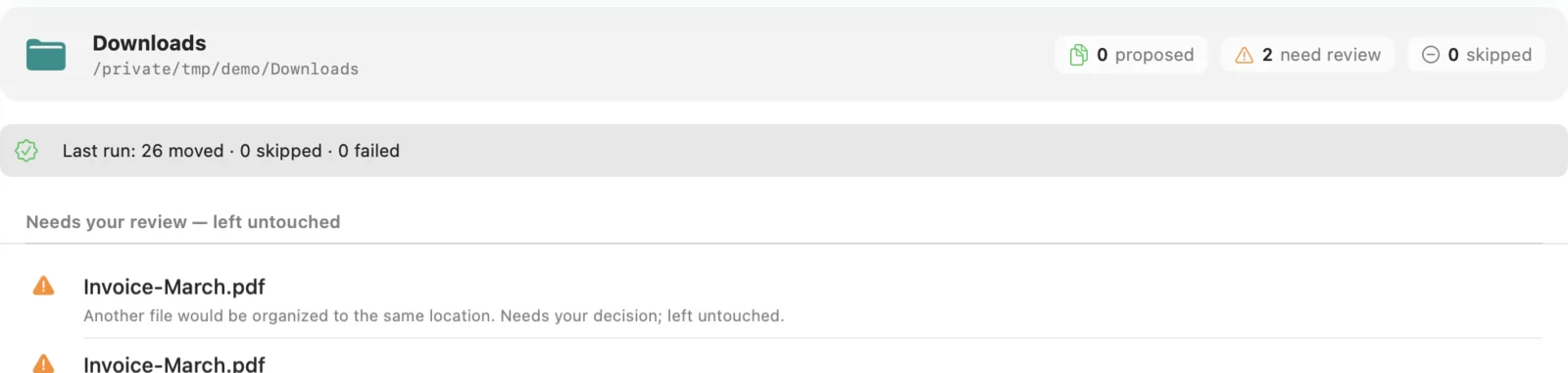
Preview scans the folder read-only, categorizes each file into a built-in folder (see Built-in folders), and proposes a destination under an macslay+/ folder. Two files that would collide, or a destination that already exists, are shown as conflicts and left untouched.
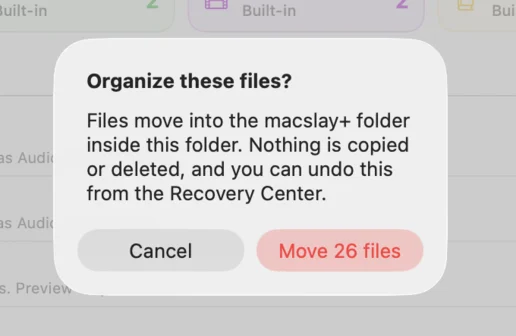
Apply runs only after you confirm. Same-volume moves are atomic renames; cross-volume moves copy, verify by SHA-256, and only then remove the original. Nothing is ever overwritten.
Undo reads the undo journal and returns each file to its original location, refusing any entry that changed or now sits outside the authorized folder.
Leaving files out (development build)
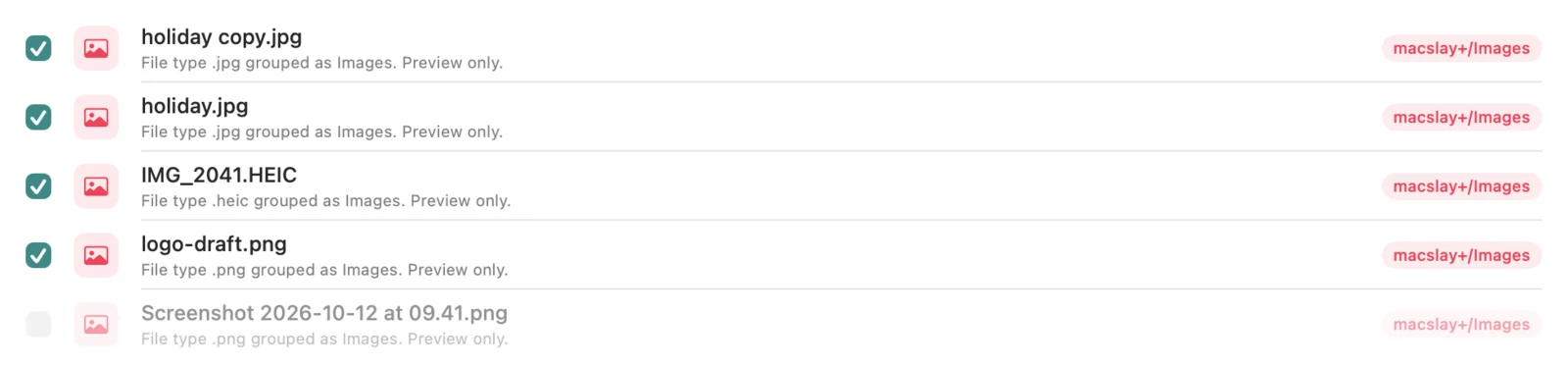
Every file in the plan has a checkbox, ticked by default. Untick a file and it stays exactly where it is; only ticked files are moved when you apply. The confirmation shows how many files will move.
Rules (development build, Pro)
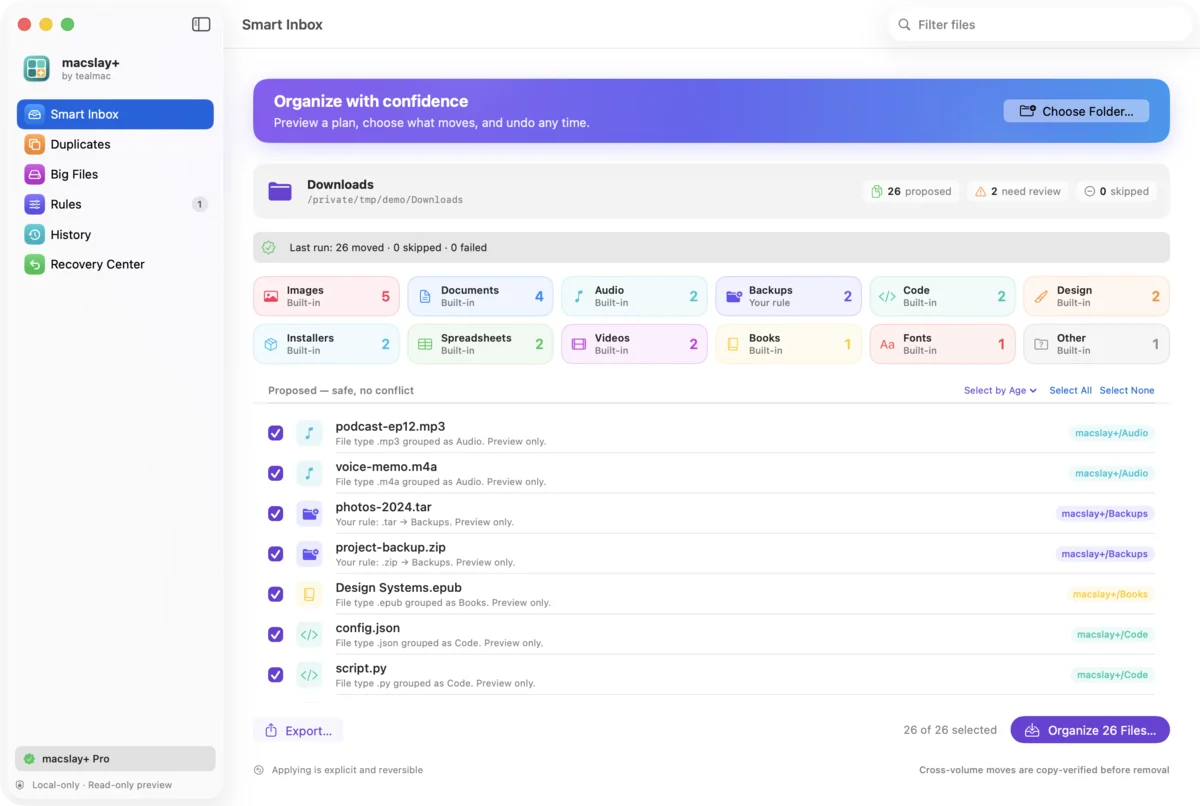
A rule sends file types to a folder you name, for example zip, tar to Backups. A rule wins over the built-in folder for those types. Rules only change the plan you review; nothing runs on its own.
Folder names are validated so a rule can only create a folder directly inside macslay+/. Names containing path separators or .. are rejected.
History (development build)
macslay+ keeps a local log of each apply and undo, with the time and how many files were moved, skipped or failed. The log stays on your computer and is never sent anywhere.
Select by age (development build)
Choose Older than 7, 30 or 90 days to tick only the files that have been sitting in the folder that long. Newer files are left unticked, so they stay where they are when you apply. You can still tick or untick any file by hand afterwards.
Duplicates (development build, Pro)
The duplicate finder groups files that are byte-for-byte identical, matched by size and then by a full content hash. In each group you choose the copy to keep.
The extras are moved to the macOS Trash, never deleted permanently, and only after you confirm. Right before each file moves, it’s checked again; a file that changed since the scan is skipped. A Restore button puts the trashed files back where they were.
Drag, Quick Look, recents (development build)
Drag a folder from Finder onto the window to preview it, the same as choosing it. Quick Look shows any file in the plan without opening it in another app. The start screen lists folders you previewed recently so you can return to them in one click.
Built-in folders (development build)
Without any rules, each file goes to one of twelve folders inside macslay+/, chosen by its file extension:
| Folder | Examples |
|---|---|
| Documents | .pdf .docx .txt .md .pages .key .pptx |
| Spreadsheets | .xlsx .xls .csv .numbers .tsv |
| Images | .jpg .png .heic .webp .gif .tiff .dng |
| Design | .psd .ai .fig .sketch .svg .indd |
| Videos | .mp4 .mov .m4v .mkv .webm |
| Audio | .mp3 .m4a .wav .aiff .flac |
| Archives | .zip .tar .gz .7z .rar |
| Installers | .dmg .pkg .iso |
| Code | .swift .py .js .ts .json .yaml .html .css .sql |
| Fonts | .ttf .otf .woff .woff2 |
| Books | .epub .mobi .azw3 |
| Other | anything else |

Group by month (development build)
Turn on Group files by month in Settings and each folder is split by the month the file was last changed, for example macslay+/Images/2026-10/. Files without a date go straight into the folder. Two files with the same name in different months no longer clash.
Big Files (development build)
Big Files lists the largest files from your current preview, biggest first, with a size bar, a type filter and search. You can Quick Look a file or reveal it in Finder. To clear space, tick files and choose Move to Trash…: the confirmation shows the count and total size, each file is re-checked right before it moves, and Put Back in the Recovery Center restores it. Nothing is deleted permanently.
Export the plan (development build)
Export saves the current preview as a Markdown report or a CSV file, wherever you choose. It lists each file, whether it’s ticked and where it would go, plus anything that needs review. Exporting moves nothing. In CSV, names that start with =, +, - or @ are prefixed so spreadsheets don’t treat them as formulas.
Settings & themes (development build)
Open Settings with ⌘,. Choose one of five colour themes (Teal, Sunset, Grape, Forest or Candy), turn on group by month, or include hidden files in the preview. Settings only change the preview; nothing moves until you organize.
Keyboard shortcuts (development build)
| Shortcut | Action |
|---|---|
| ⌘O | Choose a folder to preview |
| ⌥⌘D | Preview your Downloads folder |
| ⌘S | Organize the selected files (asks to confirm) |
| ⌥⌘Z | Undo organize |
| ⇧⌘D | Find duplicates |
| ⇧⌘E | Export the plan |
| ⇧⌘L | Upgrade or manage your license |
| ⌘, | Settings |
These live in the Organize menu. Undo uses ⌥⌘Z so it never clashes with undoing text in the search field.
Safety model
- Preview is strictly read-only: no file contents are opened, nothing is written.
- Applying is explicit, confirmed, and preview-first; there is no automatic/background mode.
- Destinations are never overwritten; conflicts fail closed.
- Organizing never deletes. The only removal is the duplicate finder moving extras you choose to the macOS Trash, after confirmation, with Restore.
- Paths are canonicalized and symlinked parent directories are refused (no escape).
- Bounded, loop-safe scanning (file/dir/depth caps) so pathological trees can’t exhaust resources.
- No network, no telemetry, no account. File names and paths never appear in the menu-bar status.
Recovery & undo (fail-closed)
The Recovery Center lists every organized file still recorded in the undo journal, across runs, and Undo Organize restores them. An entry is skipped (not forced) when the organized file was modified since the run (size/hash/inode check), when its original slot is now occupied, or when the journal points outside the authorized scope. A modified file is never silently clobbered.
Limitations (honest)
- Unsigned & un-notarized. Build and run locally only; not distributable yet.
- The move/undo engine is not file-descriptor-pinned, so a narrow time-of-check/time-of-use window remains; closing it (openat/O_NOFOLLOW/renameat) is planned before any unattended use.
- Full cross-volume atomicity is not claimed; the original is preserved until a copy is verified.
- iCloud/NAS behavior and VoiceOver/performance have been designed for but not yet fully validated on real hardware.
- Leaving files out, Rules, History, Select by age, moving duplicates to the Trash, drag-and-drop, Quick Look, recent folders, the new built-in folders, group by month, Big Files, export, themes and the Organize menu are new in the development build and haven’t had a full macOS UI test pass yet.
- No pricing, purchases, user research, or App Store status. None of those are implied anywhere on this site.
FAQ
Does it delete anything? Organizing doesn’t: it moves files into a macslay+/ folder and can undo. Cross-volume moves keep the original until a verified copy exists. In the development build, the duplicate finder (Pro) can move extra copies you pick to the macOS Trash, and Restore puts them back.
Does my data leave my computer? No. There’s no network code path.
Is it on the App Store? No. The plan is a direct download, not the Mac App Store. For now it’s a preview build you compile yourself.
Windows/iPhone? No. macOS only, by design.