
Changelog
What changed in each development build of macslay+, newest first. None of these are public releases: the app isn’t signed, distributed or for sale yet.
More folders, Big Files, export, and colour themes
In the development build. Not released.
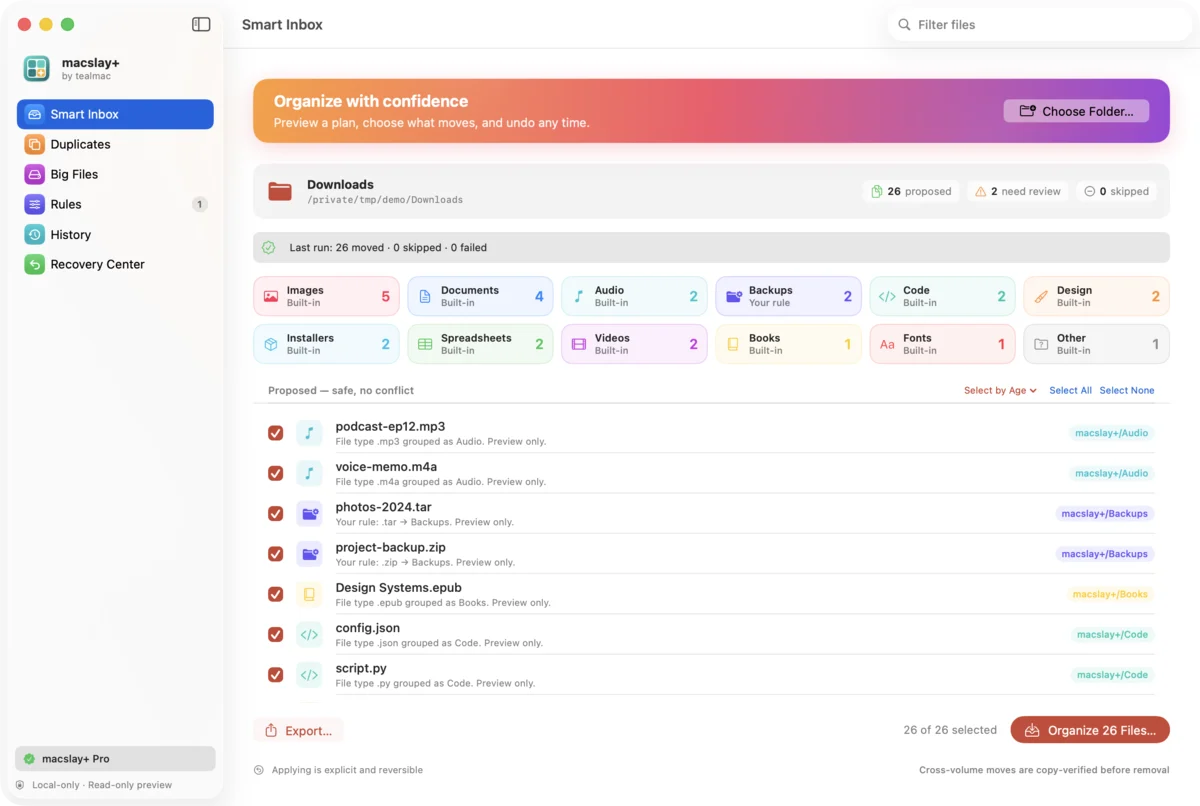
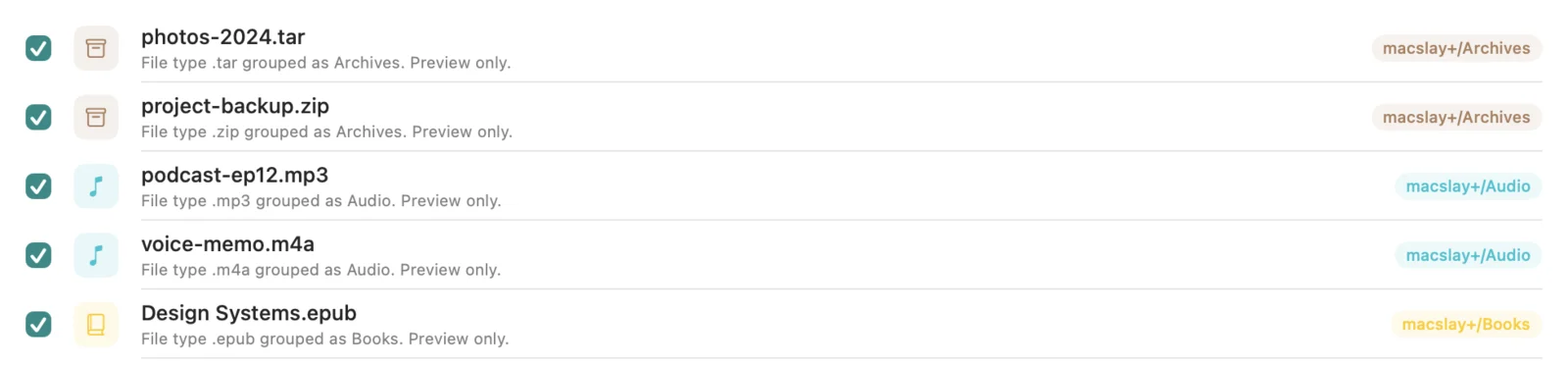
- Twelve built-in folders: Installers, Spreadsheets, Design, Code, Fonts and Books join Documents, Images, Videos, Audio, Archives and Other.
- Group by month: an option in Settings that splits each folder by month, like Organized/Images/2026-10.
- Big Files: a look-only list of the largest files, with size bars, Quick Look and Reveal in Finder.
- Export the plan as a Markdown report or a CSV file. Exporting moves nothing.
- Settings window with five colour themes: Teal, Sunset, Grape, Forest and Candy.
- An Organize menu with keyboard shortcuts, and Preview Downloads in the menu bar.
- A more colourful app icon and sidebar.
Duplicates you can clear, select by age, and Mac niceties
In the development build. Not released.
- Duplicates (Pro): choose which copy to keep and move the extras to the macOS Trash. Nothing is permanently deleted, and each file is checked again right before it moves.
- Restore: a button puts files moved to the Trash back where they were.
- Select by age: tick only files older than 7, 30 or 90 days.
- Drag a folder onto the window to preview it.
- Quick Look any file in the plan.
- Recent folders on the start screen.
Leave files out, Rules, History, and a new look
In the development build. Not released.
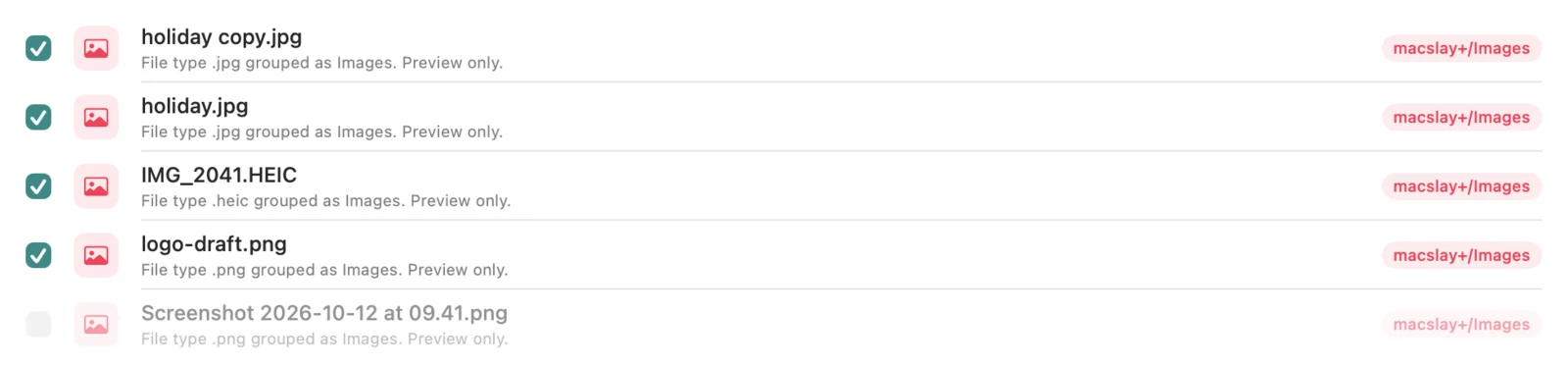
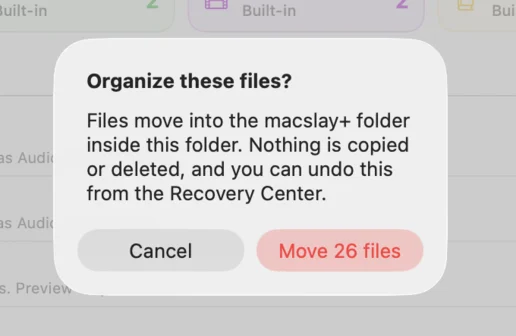
- Leave files out: every file in the plan has a checkbox, and only ticked files move. The confirmation shows how many will move.
- Rules (Pro): send a file type to a folder you name, like .dmg and .pkg to Installers. Folder names are checked so a rule can only point inside Organized.
- History: a log of each organize and undo, with counts and the folder name, kept on your computer.
- Redesigned Smart Inbox: colour-coded folder tiles that filter the list, a search box, Reveal in Finder, and a clearer Organize button.
- A new app icon.
- Better VoiceOver labels for file checkboxes and History rows.
Safety fixes from a code review
Eight issues found in a review of the file-moving code, all fixed.
- Right before moving a file, the app now checks the file as it is at that moment, not as it was during the preview.
- Organizing again no longer replaces the undo record from an earlier run, and a failed save of that record now shows a warning.
- A copy to another drive that fails partway no longer leaves a broken file behind.
- Undo to another drive can no longer leave the same file in two places.
- File names that differ only by capital letters are now shown as a clash in the preview.
One-time Pro, no trial
Pricing model simplified. Nothing is for sale yet.
- Pro is planned as a single one-time purchase that stays unlocked. There is no trial and no subscription.
Duplicate finder and the Free/Pro split
First Pro feature.
- Exact duplicate finder (Pro): files are matched by size and then by full content hash.
- The Free tier organizes up to 25 files per run.
Apply and undo
The app can now move files, after you confirm.
- Apply moves the planned files after a confirmation dialog. Nothing is ever overwritten.
- Moves to another drive copy first, check the copy’s SHA-256 hash, and only then remove the original.
- Every run is recorded, and the Recovery Center can undo it. Undo skips any file that changed since.
Read-only preview
The first working build.
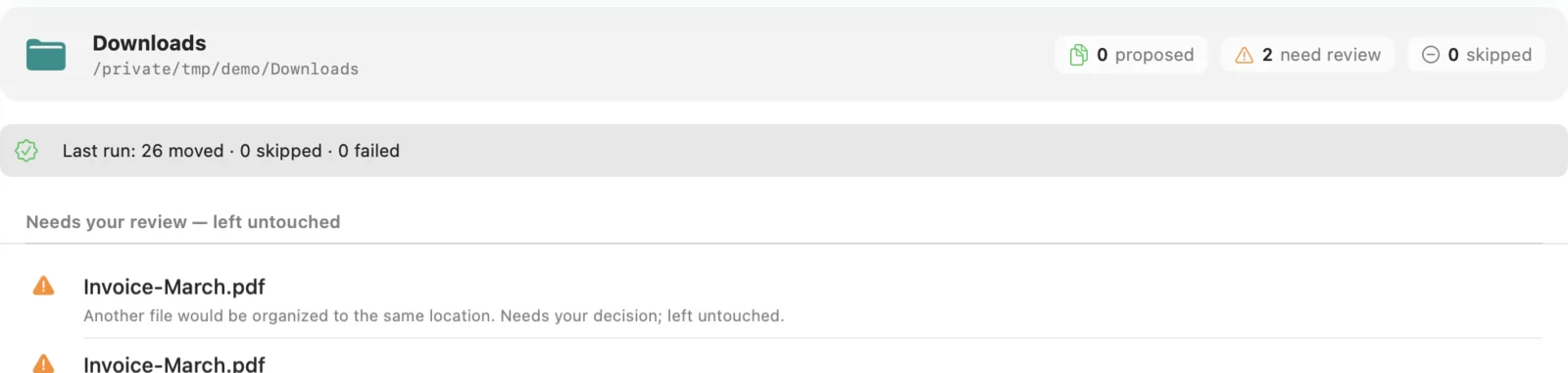
- Choose a folder and see a plan grouped by file type, with clashes shown and left alone.
- The preview only reads file details. It never opens or changes files.
- Menu-bar status shows counts only, never file names.
